



• Contact Us
  • 01609 536 086
Nyes Digital Logo

Home

IT Services

3

Sales

3

Web Design

3

School MIS

3

Training

3
Nyes Digital Logo
a

Services

  • 5
    Broadband Services
  • 5
    Cyber Security
  • 5
    Google Services
  • 5
    IT Helpdesk
  • 5
    IT Hardware Repair
  • 5
    Microsoft Services
  • 5
    Mobile Phones and VOIP
  • 5
    Onsite IT Technician
  • 5
    Sales and Installation
  • 5
    WEEE
  • 5
    Vape Detectors

Our Vast Range of Microsoft Services

MIS Services

  • 5
    MIS Overview
  • 5
    MIS Supplier Framework

MIS Systems

  • 5
    Arbor
  • 5
    Bromcom
  • 5
    ESS Sims
  • 5
    Compass

MIS Training

  • 5
    Book Training 

Which MIS Systems do you support?

Website Services

  • 5
    Website Design
  • 5
    Hosting & DNS
  • 5
    Domain Registration
  • 5
    SSL Certification
  • 5
    Brand Design
  • 5
    Meet the Team
  • 5
    Portfolio

What packages do you do?

Training

  • 5
    MIS Training
  • 5
    Cyber Security Training
  • 5
    Microsoft Training

Need Training?

Sales Categories

  • 5
    Sales Home
  • 5
    Accessories
  • 5
    Audio Visual
  • 5
    Computing
  • 5
    Networking
  • 5
    Printers
  • 5
    Software
  • 5
    iPads and Accessories

Need help deciding?

How to Launch Quick Assist

by Cirrus SICT | Aug 12, 2022 | Office 365 Support

How to Launch Quick Assist

With the Windows Quick Assist app, you can receive PC assistance over a remote connection. Remember only to share Quick Assist with trusted people since they can access your PC.

Important: An update is required to continue using Quick Assist. For updated information and FAQs please visit the article Install Quick Assist.

Select Start  > Microsoft Store > Search Quick Assist  > select Get.

If you are currently running version 2.0.6.0 or higher you will no longer see two icons. If you are seeing two icons, you'll need to manually remove any shortcuts you have previously pinned which launch the old app, and replace them with shortcuts to the new app.

To check the version you are running, search your device for Quick Assist > select App settings (or right-click on the new Quick Assist Icon and select App settings). 

Confirm the version = 2.0.6.0. or higher

Note: If you are on a work or school device you may be restricted by corporate policy from installing or accessing the Quick Assist update in the Store. For more information contact your support person or admin.

Image of Quick Assist Old & New Icons

The Quick Assist icon has a new look. The side-by-side image above shows the old and new icons. Be sure to select the updated icon.

Open Quick Assist

Select Start  > Quick Assist

You might also be interested in

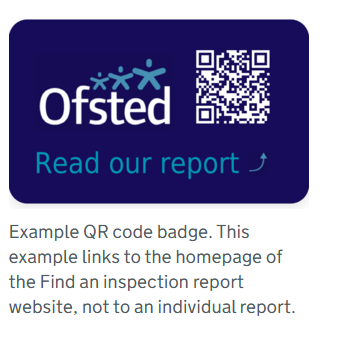
Ofsted QR Code for Reports

Ofsted QR Code for Reports

In a move to modernize school inspections and increase transparency, Ofsted has officially launched new QR code badges for all education providers across England. The initiative, announced this month by Sir Martyn Oliver, His Majesty’s Chief Inspector, aims to give...

30th January 2026 Suspicious Email Warning

Suspicious Email Warning North Yorkshire Council’s Cyber Security Team have reported to us that numerous members of NYC staff have received an email which appears to be from Embsay School wishing to share admin details via email. We can confirm that this is a spam...

🎉 Cyber Switch Up 2025 Is Here! 🎉

The Yorkshire & Humber Regional Cyber Crime Unit in conjunction with our Partners are once again running the hugely successful Cyber Switch up competition in 2025, and you are warmly invited to get involved! This year’s competition is being sponsored by Amazon Web...