
• Contact Us
  • 01609 536 086
Nyes Digital Logo

Home

IT Services

3

Sales

3

Web Design

3

School MIS

3

Training

3
Nyes Digital Logo
a

Training

  • 5
    MIS Training
  • 5
    Cyber Security Training
  • 5
    Microsoft Conversion

Need Training?

Services

  • 5
    Broadband Services
  • 5
    Cyber Security
  • 5
    Google Services
  • 5
    IT Helpdesk
  • 5
    IT Hardware Repair
  • 5
    Microsoft Services
  • 5
    Mobile Phones and VOIP
  • 5
    Onsite IT Technician
  • 5
    Sales and Installation
  • 5
    WEEE

Our Vast Range of Microsoft Services

Services

  • 5
    Broadband Services
  • 5
    Google Services
  • 5
    Microsoft Services
  • 5
    Sales and Installation
  • 5
    Mobile Phones and VOIP

IT

  • 5
    Helpdesk
  • 5
    Hardware Repair
  • 5
    Cyber Security
  • 5
    Onsite Technician
  • 5
    WEEE

Have a question?

MIS Services

  • 5
    Arbor
  • 5
    Bromcom
  • 5
    ESS Sims
  • 5
    Compass

MIS Training

  • 5
    Book Training 

MIS Framework

  • 5
    MIS Supplier Framework

Which MIS Systems do you support?

Services

  • 5
    Websites
  • 5
    Hosting & DNS
  • 5
    Domain Registration
  • 5
    SSL Certification

Information

  • 5
    Meet the team
  • 5
    Portfolio

What packages do you do?

Sales Categories

  • Sales Home
  • 5
    Accessories
  • 5
    Audio Visual
  • 5
    Computing
  • 5
    Networking
  • 5
    Printers
  • 5
    Software
  • 5
    iPads and Accessories

Need help deciding?

Create a Team

by Jack Bowyer | Apr 20, 2022

7

Create a Team

(If Schools ICT has set your teams up, only designated members of staff will be granted access to create additional teams)

On the left side of Teams, click Teams, at the bottom of the teams list, click Join or create a team, and then click Create a new team.

Once you've created the team, invite people to join it. You can add individual users, groups, and even entire contact groups (formerly known as "distribution lists").

Add a team owner

Find the team that you created, click More options ˙˙˙ > Manage team. Then go to the Members tab. Find the people you want to designate as team owners. Under Role, click Owner.

Create a channel in a team

Find the team that you created, click More options ... > Add channel. You can also click Manage team and add a channel in the Channels tab.
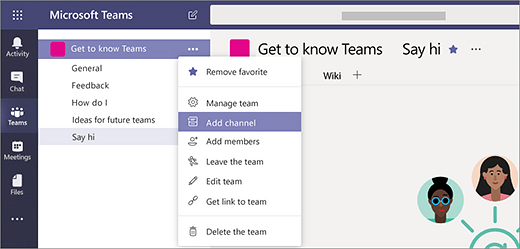
Give the channel a descriptive name to make it easier for users to understand the purpose of the channel.

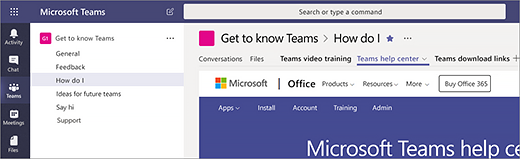
As a team owner, you can automatically favorite channels for the whole team, making the channels more visible for everyone on the team. You can also pin tabs to the channel to add tools, such as OneNote, links to webpages, and other content to make it easy for users to find what they need and share their thoughts.

Here's an example of the "How do I" channel in the "Get to know Teams" team, showing pinned tabs that link to Teams webpages – Teams video training, Teams help center, and Teams download links.
You might also be interested in

Ofsted QR Code for Reports

Ofsted QR Code for Reports

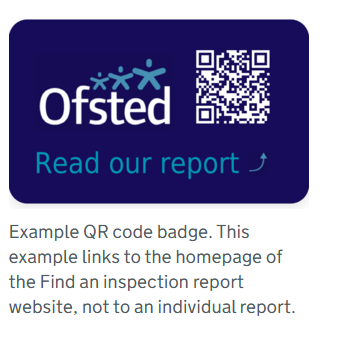
In a move to modernize school inspections and increase transparency, Ofsted has officially launched new QR code badges for all education providers across England. The initiative, announced this month by Sir Martyn Oliver, His Majesty’s Chief Inspector, aims to give...