




Guest Access
Before you add a guest to a Team you will need to have made sure that everything has been done to enable Guest Access in Teams, and that you understand what guests can and cannot do in Teams.
Understand limitations for guests
The guest experience has limitations by design. Make sure you understand the guest experience so you don't try to fix something that isn't a problem. For example, here's a list of some of the functionality that is not available to a guest in Microsoft Teams:
- Add Tabs or Apps to a Channel
- OneDrive for Business
- People search outside of Teams
- Calendar, Scheduled Meetings, or Meeting Details
- PSTN
- Organization chart
- Create or revise a team
- Browse for a team
- Upload files to a person-to-person chat
For more details, see What the guest experience is like
To Add a Guest to a Team
You need to be a Team Owner to add a guest member to a Team
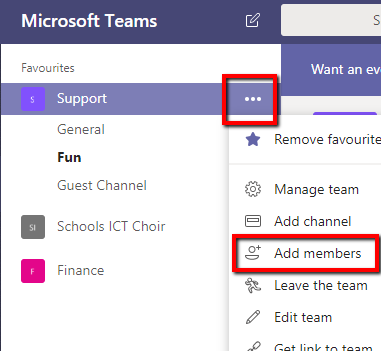
Go to the team name, click … (More options) > Add members
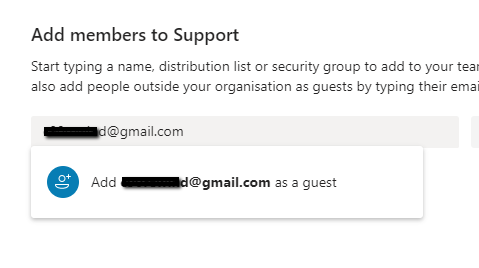
Type in the e-mail address of the Guest that you want to add. As you type Teams will search your Office 365 to see if the account already exists. When it can't find the account, you will get the prompt to add the e-mail address as a guest.
Click on the prompt to Add <e-mail address> as a guest
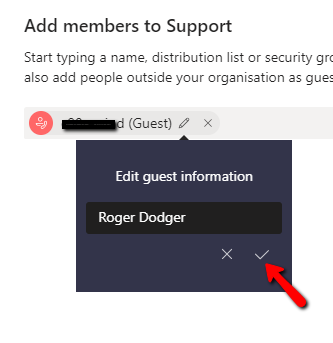
Before clicking on the Add button, click the pencil button if you want to edit the name that will be added into Teams. This is the only chance you will get to edit this name so if it is not appropriate for easily identifying the person you are adding, then you need to edit it now.
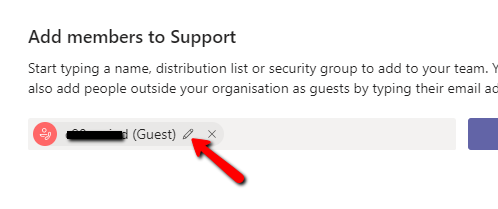
When you have edited the name, click the Tick to confirm the change
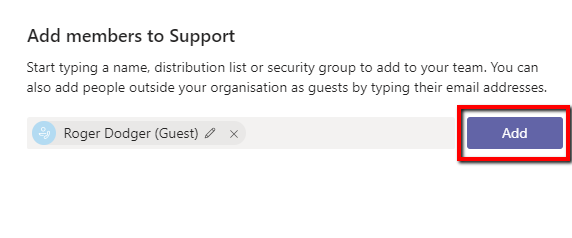
Click Add to complete adding the guest account to Teams
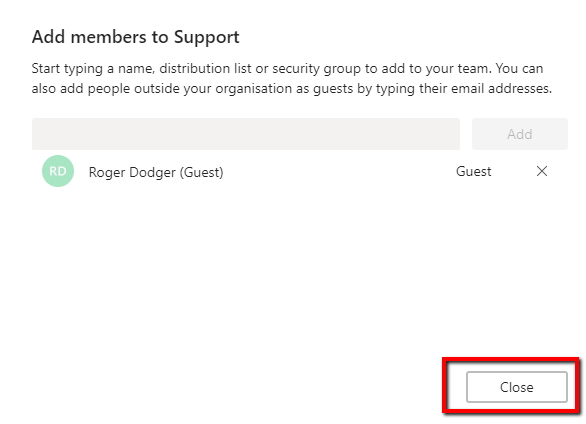
The account will be added to Teams. You can either add more accounts, or click Close if you have finished.
To access a Team you have been added to as a guest.
When you have been added to a Team as a guest, you will get an welcome e-mail message that includes some information about the team and what to expect now that you're a member. You must redeem the invitation in the email message before you can access the team and its channels.
Click on Open Microsoft Teams in the invitation you will have recieved at the email that was added to the team.
You'll be taken to the Office 365 login page
If you dont have a microsoft account you will receive a message to Create an Account. Click Next
You might first have to choose between opening Teams in a web page or downloading and using the app. For the initial login I recommend working on the web, You can download the app once logged in.