

• Contact Us
  • 01609 536 086
Nyes Digital Logo

Home

IT Services

3

Sales

3

Web Design

3

School MIS

3

Training

3
Nyes Digital Logo
a

Training

  • 5
    MIS Training
  • 5
    Cyber Security Training
  • 5
    Microsoft Conversion

Need Training?

Services

  • 5
    Broadband Services
  • 5
    Cyber Security
  • 5
    Google Services
  • 5
    IT Helpdesk
  • 5
    IT Hardware Repair
  • 5
    Microsoft Services
  • 5
    Mobile Phones and VOIP
  • 5
    Onsite IT Technician
  • 5
    Sales and Installation
  • 5
    WEEE

Our Vast Range of Microsoft Services

Services

  • 5
    Broadband Services
  • 5
    Google Services
  • 5
    Microsoft Services
  • 5
    Sales and Installation
  • 5
    Mobile Phones and VOIP

IT

  • 5
    Helpdesk
  • 5
    Hardware Repair
  • 5
    Cyber Security
  • 5
    Onsite Technician
  • 5
    WEEE

Have a question?

MIS Services

  • 5
    Arbor
  • 5
    Bromcom
  • 5
    ESS SIMS
  • 5
    Integris
  • 5
    ScholarPack
  • 5
    MIS Supplier Framework
  • 5
    Online Payment Supplier Framework
  • 5
    iPayimpact
  • 5
    Parent Pay Support Contracts for Schools
  • 5
    School Comms

Which MIS Systems do you support?

MIS Services

  • 5
    Arbor
  • 5
    Bromcom
  • 5
    ESS Sims

MIS Training

  • 5
    Book Training 

MIS Framework

  • 5
    MIS Supplier Framework

Which MIS Systems do you support?

MIS Services

  • 5
    Arbor
  • 5
    Bromcom
  • 5
    ESS Sims
  • 5
    Scholar Pack

MIS Training

  • 5
    Training Overview
  • 5
    Book Training 

MIS Framework

  • 5
    MIS Supplier Framework

Have a question?

Services

  • 5
    Websites
  • 5
    Hosting & DNS
  • 5
    Domain Registration
  • 5
    SSL Certification

Information

  • 5
    Meet the team
  • 5
    Portfolio

What packages do you do?

Services

  • 5
    Websites
  • 5
    Hosting & DNS
  • 5
    Domain Registration
  • 5
    SSL Certification

Information

  • 5
    Meet the team
  • 5
    Portfolio

Have a question?

Sales Categories

  • Sales Home
  • 5
    Accessories
  • 5
    Audio Visual
  • 5
    Computing
  • 5
    Networking
  • 5
    Printers
  • 5
    Software
  • 5
    iPads and Accessories

Need help deciding?

M

Home

IT Services

Broadband Services

Google Services

Microsoft Services

Sales and Installation

Helpdesk

Hardware Repair 

Cyber Security

Onsite Technician

WEEE

Shop

Web Design

Websites

Hosting and DNS

Domain Registration

SSL Certification

Meet the team

Portfolio

School MIS

Arbor

Bromcom

ESS Sims

Scholarpack

Training Overview

Book Training

MIS Supplier Framework

Training

Have a question?

How to move files in Teams

by Jack Bowyer | Apr 20, 2022

7

How to move files in Teams

You can easily move files around in Teams, either to different channels or to different Teams, using built in file management tools. These allow you to either copy or move files.

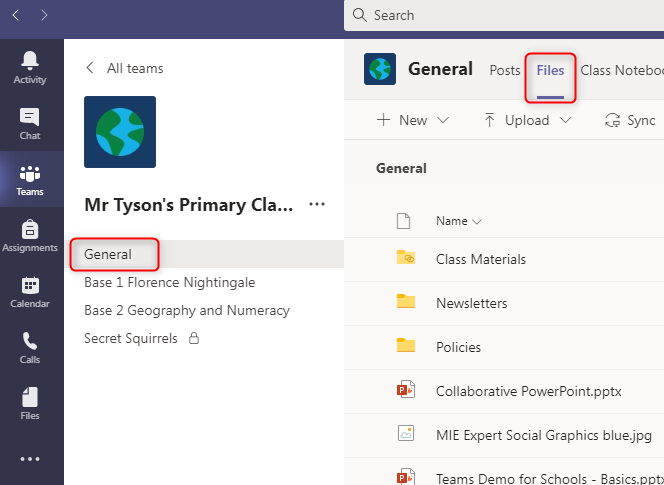
In Teams, select the required Team, then the required Channel, then the Files tab
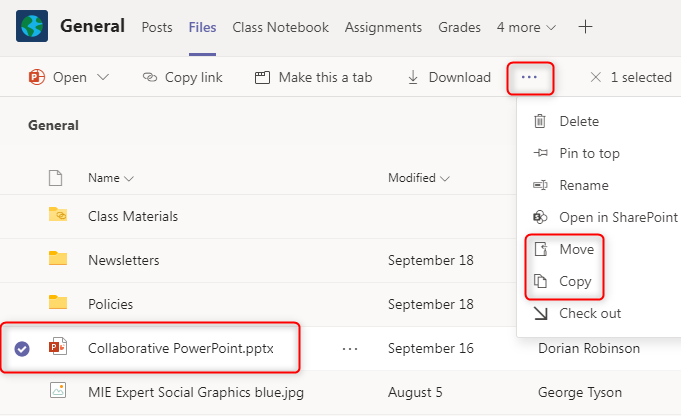
Select the file (or files) and then select Move or Copy

If you select multiple files your options will be reduced and you will just see the option to move or copy along the top menu bar rather than on a drop down list.
If you just want to move a file to another folder in the same channel, just select that folder now and click Move (or Copy) - greyed out in this screenshot but it will become active when you select a folder

Otherwise click on the up icon next to the channel name, as highlighted, and this will move you up a level to show you the other channels within this Team
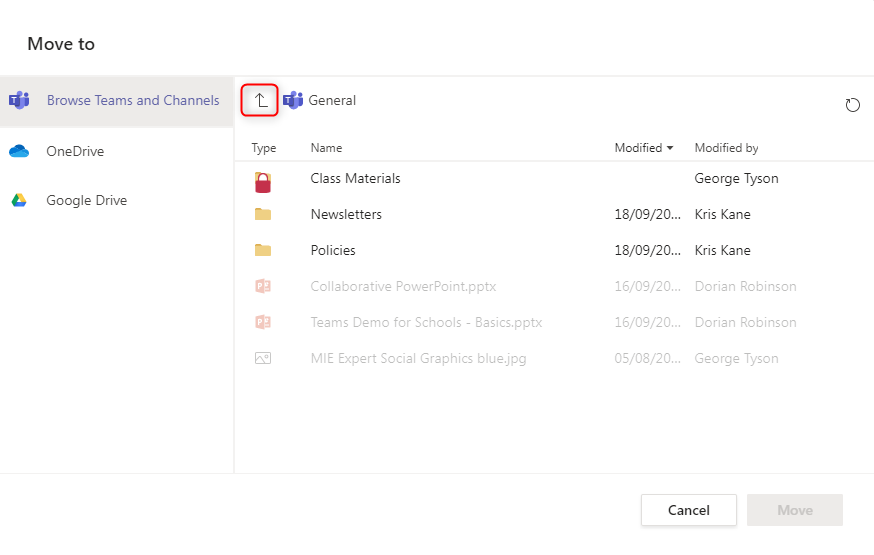
 If you are wanting to Move (or Copy) your selected file into different channel within the same Team, you can now select the folder representing that channel.

Once you have selected a channel, click on the Move (or Copy) button that will have become active.

If you want to move or copy your file to another Team, click on the up icon next to the Team name, as highlighted, and this will move you up a level to show you the other Teams that you have access to.
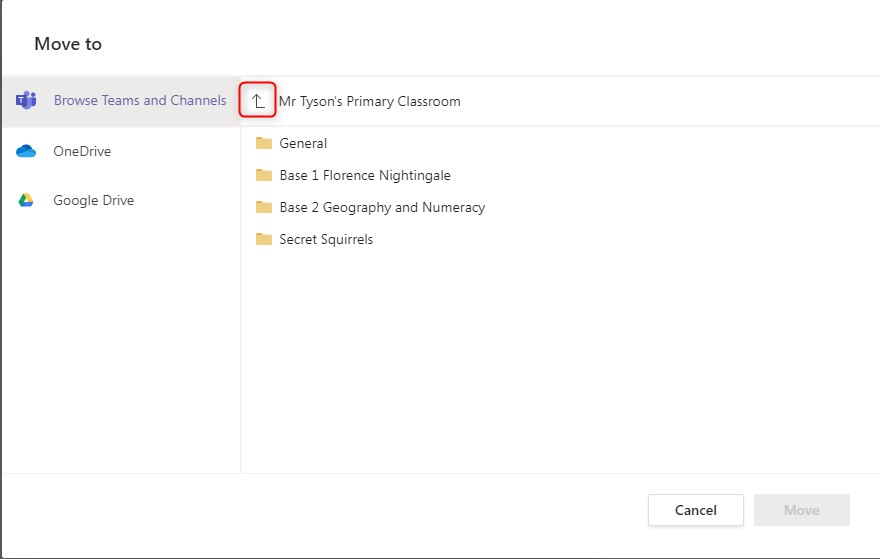
Now at the tenant level select the Team the file will be moved to.
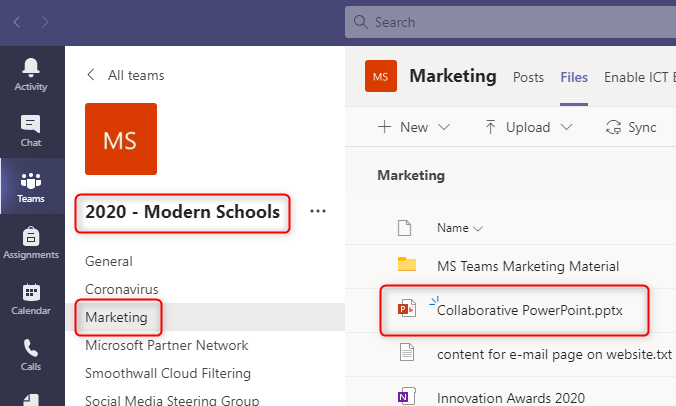
In this example we will select 2020 - Modern Schools
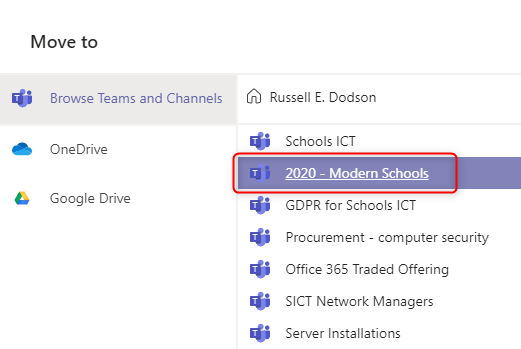
Select the channel the file will be moved to.

In this example we will select Marketing
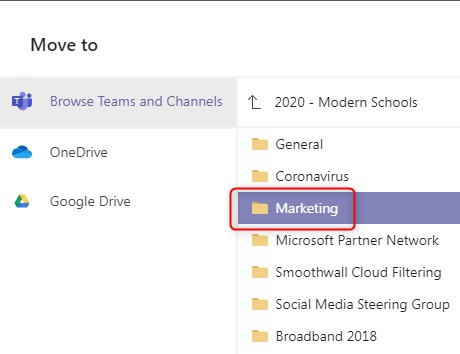
If there are folders in the channel, you can now select a specific folder to move the file into. Otherwise just select Move to move the file into the root of the channel.

In this example, move will be selected.
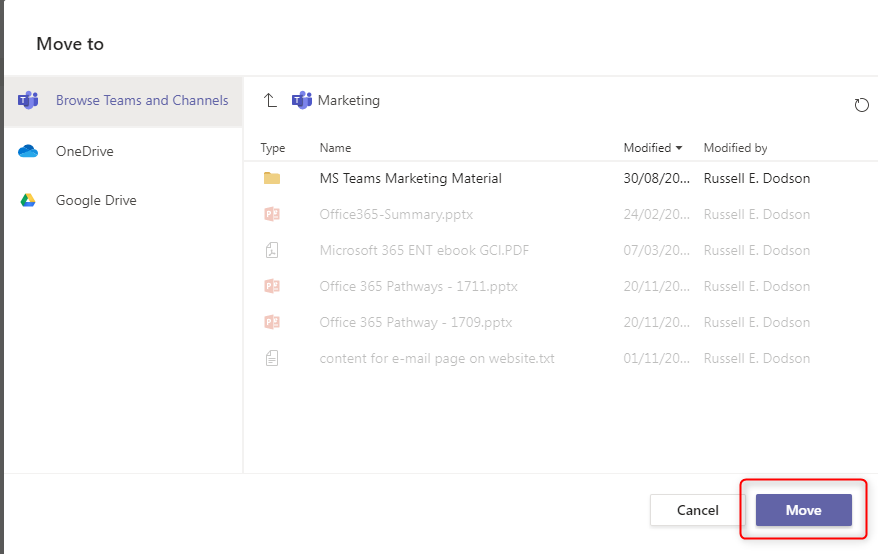
A notification will confirm the move
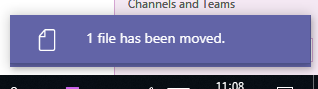
The file has been moved as required to the new team.

This can be done with multiple files but, as previously mentioned, it cannot be done with folders. So folders may need to be created to mirror an existing folder structure in another channel or Team prior to moving files. Alternatively you can use SharePoint to move folders as per How to Move Folders between Teams
You might also be interested in