
• Contact Us
  • 01609 536 086
Nyes Digital Logo

Home

IT Services

3

Sales

3

Web Design

3

School MIS

3

Training

3
Nyes Digital Logo
a

Training

  • 5
    MIS Training
  • 5
    Cyber Security Training
  • 5
    Microsoft Conversion

Need Training?

Services

  • 5
    Broadband Services
  • 5
    Cyber Security
  • 5
    Google Services
  • 5
    IT Helpdesk
  • 5
    IT Hardware Repair
  • 5
    Microsoft Services
  • 5
    Mobile Phones and VOIP
  • 5
    Onsite IT Technician
  • 5
    Sales and Installation
  • 5
    WEEE

Our Vast Range of Microsoft Services

Services

  • 5
    Broadband Services
  • 5
    Google Services
  • 5
    Microsoft Services
  • 5
    Sales and Installation
  • 5
    Mobile Phones and VOIP

IT

  • 5
    Helpdesk
  • 5
    Hardware Repair
  • 5
    Cyber Security
  • 5
    Onsite Technician
  • 5
    WEEE

Have a question?

MIS Services

  • 5
    Arbor
  • 5
    Bromcom
  • 5
    ESS SIMS
  • 5
    Integris
  • 5
    ScholarPack
  • 5
    MIS Supplier Framework
  • 5
    Online Payment Supplier Framework
  • 5
    iPayimpact
  • 5
    Parent Pay Support Contracts for Schools
  • 5
    School Comms

Which MIS Systems do you support?

MIS Services

  • 5
    Arbor
  • 5
    Bromcom
  • 5
    ESS Sims

MIS Training

  • 5
    Book Training 

MIS Framework

  • 5
    MIS Supplier Framework

Which MIS Systems do you support?

MIS Services

  • 5
    Arbor
  • 5
    Bromcom
  • 5
    ESS Sims
  • 5
    Scholar Pack

MIS Training

  • 5
    Training Overview
  • 5
    Book Training 

MIS Framework

  • 5
    MIS Supplier Framework

Have a question?

Services

  • 5
    Websites
  • 5
    Hosting & DNS
  • 5
    Domain Registration
  • 5
    SSL Certification

Information

  • 5
    Meet the team
  • 5
    Portfolio

What packages do you do?

Services

  • 5
    Websites
  • 5
    Hosting & DNS
  • 5
    Domain Registration
  • 5
    SSL Certification

Information

  • 5
    Meet the team
  • 5
    Portfolio

Have a question?

Sales Categories

  • Sales Home
  • 5
    Accessories
  • 5
    Audio Visual
  • 5
    Computing
  • 5
    Networking
  • 5
    Printers
  • 5
    Software
  • 5
    iPads and Accessories

Need help deciding?

M

Home

IT Services

Broadband Services

Google Services

Microsoft Services

Sales and Installation

Helpdesk

Hardware Repair 

Cyber Security

Onsite Technician

WEEE

Shop

Web Design

Websites

Hosting and DNS

Domain Registration

SSL Certification

Meet the team

Portfolio

School MIS

Arbor

Bromcom

ESS Sims

Scholarpack

Training Overview

Book Training

MIS Supplier Framework

Training

Have a question?

Changing your sign-in for Office 365 Apps

by Jack Bowyer | Apr 19, 2022

7

Changing your sign-in for Office 365 Apps

If your Office 365 account name is changed, for example you get a new username as part of a school federation, then you may need to sign out of various Office 365 applications, such as the Teams client, and then sign back in with your new account. Below is a summary of the applications you might need to change your sign in for and how to do it.

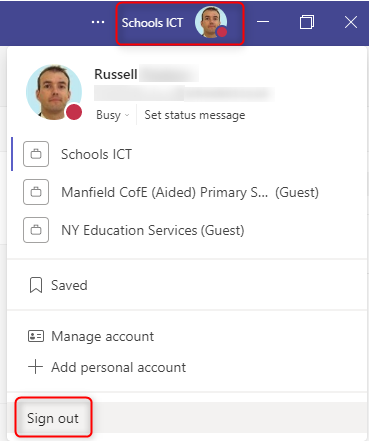
Sign out of your old account by clicking on your Profile Button in the top right of the app.

Click Sign out
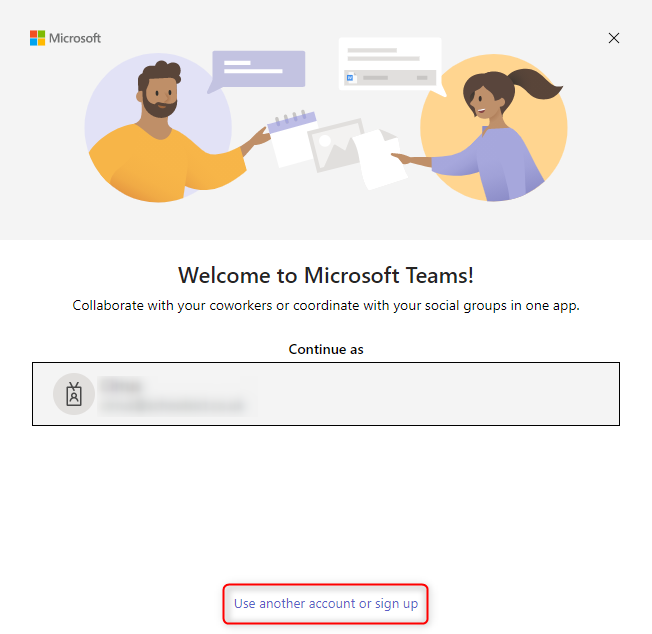
Click Use another account or sign up on the sign in screen that appears
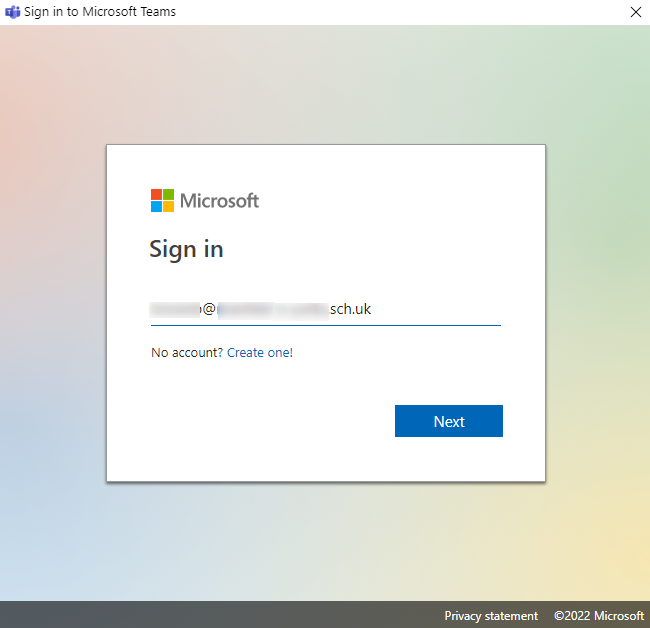
Type in your new username and click Next
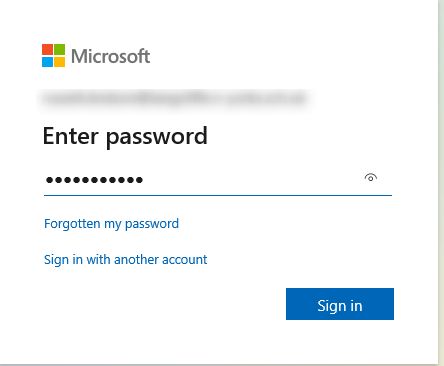
Enter your password and click Sign in
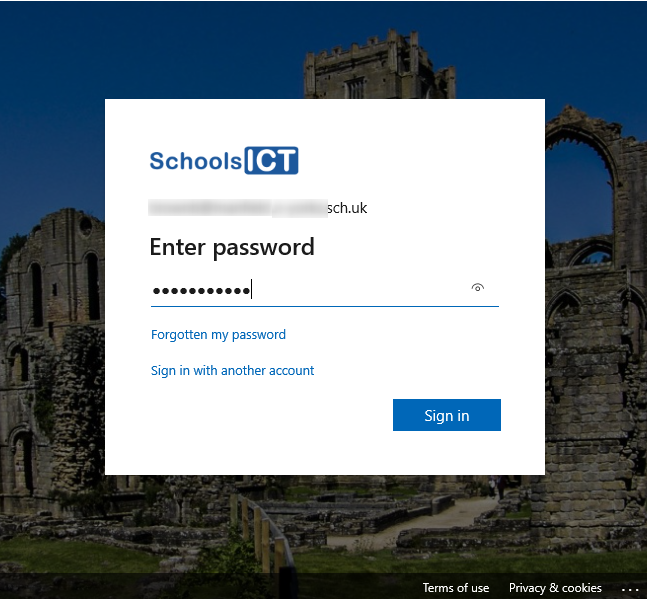
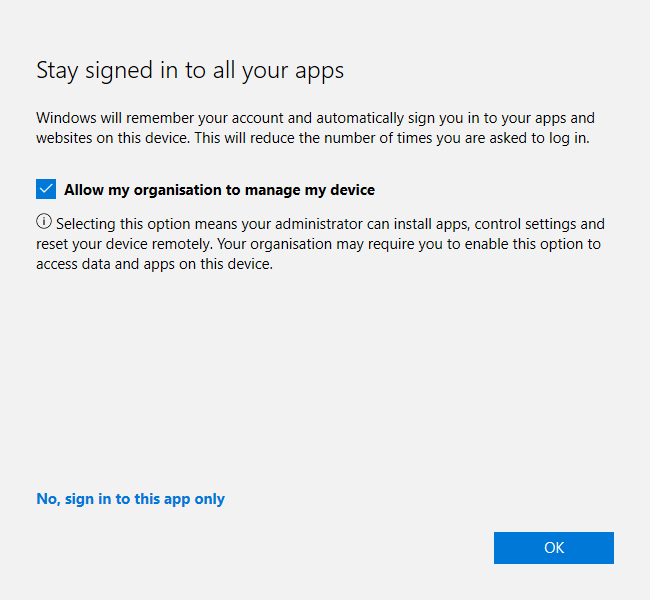
Click OK
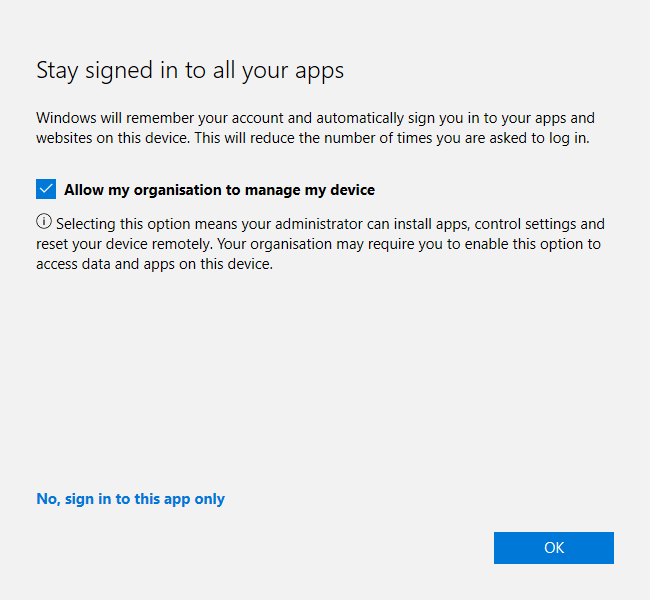
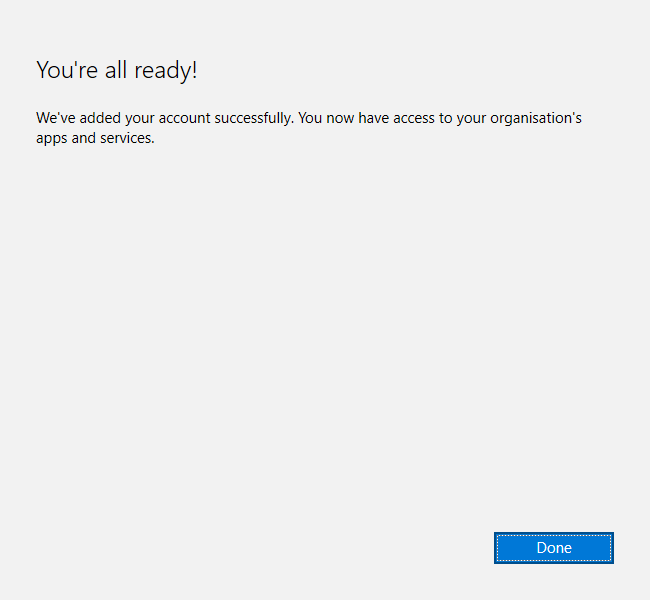
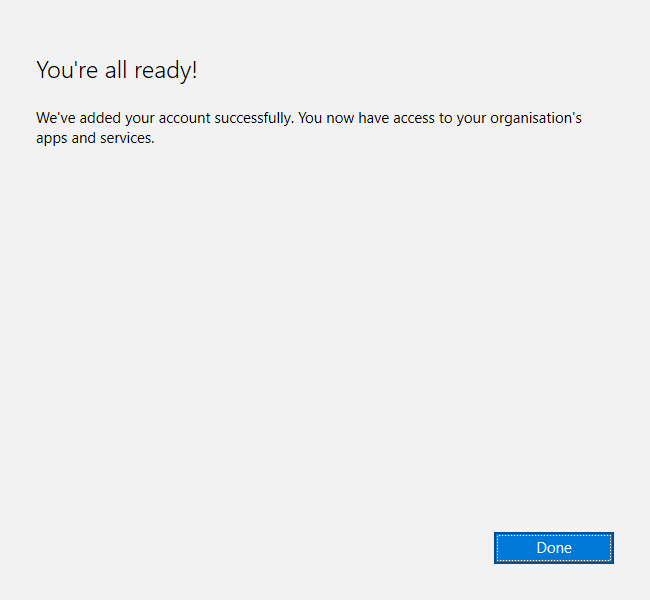
Click Done

You will now be signed into the Teams app with your new account
One Drive Client

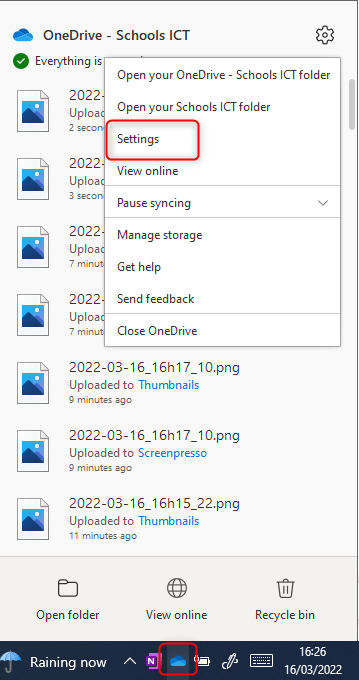
Right click on the blue cloud (representing the One Drive client) in your system tray.

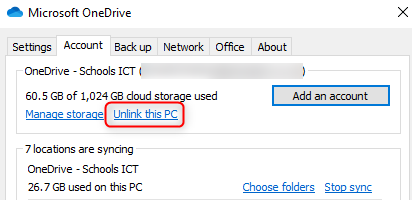
Click Settings
Click Unlink this PC
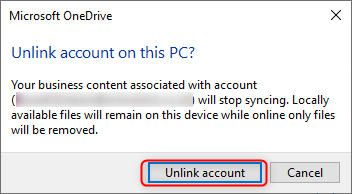
Click Unlink Account
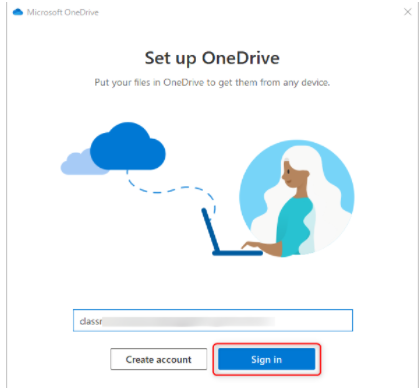
The setup OneDrive screen will appear.

Enter your new Office 365 username and click Sign in
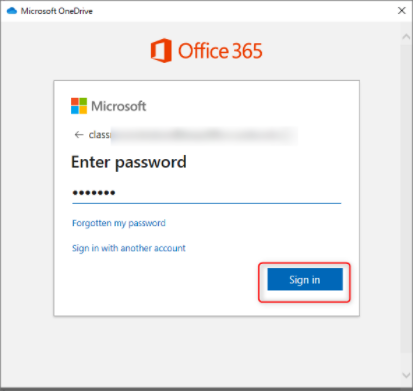
Enter your password.

Click through any additional information screens and you will then be signed into the One Drive Client with your new account.
Office Desktop Apps (Word, Excel etc.)

Click on your profile button towards the top right of the app

Click Sign Out
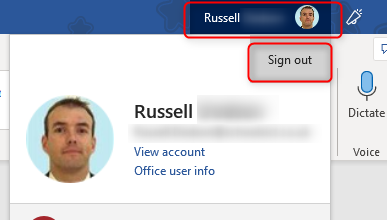
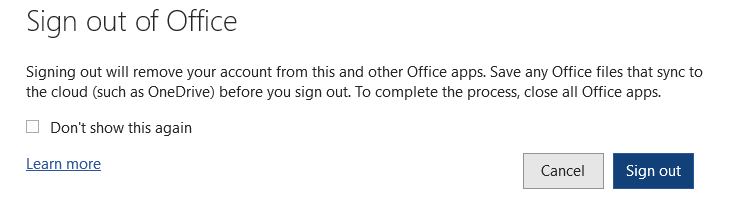
Click Sign out
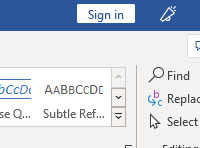
Click Sign in towards the top right of the app
Type in your new username

Click Next
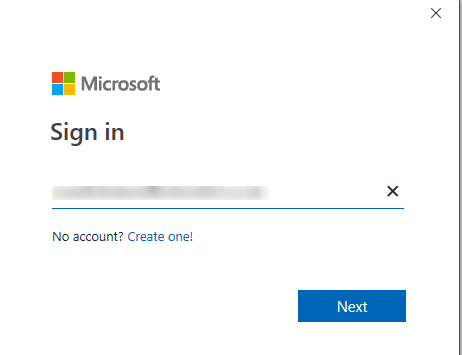
Enter your password if prompted

Click Sign in
Click OK
Click Done

You will now be signed into the Teams app with your new account
You might also be interested in