
• Contact Us
  • 01609 536 086
Nyes Digital Logo

Home

IT Services

3

Sales

3

Web Design

3

School MIS

3

Training

3
Nyes Digital Logo
a

Training

  • 5
    MIS Training
  • 5
    Cyber Security Training
  • 5
    Microsoft Conversion

Need Training?

Services

  • 5
    Broadband Services
  • 5
    Cyber Security
  • 5
    Google Services
  • 5
    IT Helpdesk
  • 5
    IT Hardware Repair
  • 5
    Microsoft Services
  • 5
    Mobile Phones and VOIP
  • 5
    Onsite IT Technician
  • 5
    Sales and Installation
  • 5
    WEEE

Our Vast Range of Microsoft Services

Services

  • 5
    Broadband Services
  • 5
    Google Services
  • 5
    Microsoft Services
  • 5
    Sales and Installation
  • 5
    Mobile Phones and VOIP

IT

  • 5
    Helpdesk
  • 5
    Hardware Repair
  • 5
    Cyber Security
  • 5
    Onsite Technician
  • 5
    WEEE

Have a question?

MIS Services

  • 5
    Arbor
  • 5
    Bromcom
  • 5
    ESS SIMS
  • 5
    Integris
  • 5
    ScholarPack
  • 5
    MIS Supplier Framework
  • 5
    Online Payment Supplier Framework
  • 5
    iPayimpact
  • 5
    Parent Pay Support Contracts for Schools
  • 5
    School Comms

Which MIS Systems do you support?

MIS Services

  • 5
    Arbor
  • 5
    Bromcom
  • 5
    ESS Sims

MIS Training

  • 5
    Book Training 

MIS Framework

  • 5
    MIS Supplier Framework

Which MIS Systems do you support?

MIS Services

  • 5
    Arbor
  • 5
    Bromcom
  • 5
    ESS Sims
  • 5
    Scholar Pack

MIS Training

  • 5
    Training Overview
  • 5
    Book Training 

MIS Framework

  • 5
    MIS Supplier Framework

Have a question?

Services

  • 5
    Websites
  • 5
    Hosting & DNS
  • 5
    Domain Registration
  • 5
    SSL Certification

Information

  • 5
    Meet the team
  • 5
    Portfolio

What packages do you do?

Services

  • 5
    Websites
  • 5
    Hosting & DNS
  • 5
    Domain Registration
  • 5
    SSL Certification

Information

  • 5
    Meet the team
  • 5
    Portfolio

Have a question?

Sales Categories

  • Sales Home
  • 5
    Accessories
  • 5
    Audio Visual
  • 5
    Computing
  • 5
    Networking
  • 5
    Printers
  • 5
    Software
  • 5
    iPads and Accessories

Need help deciding?

M

Home

IT Services

Broadband Services

Google Services

Microsoft Services

Sales and Installation

Helpdesk

Hardware Repair 

Cyber Security

Onsite Technician

WEEE

Shop

Web Design

Websites

Hosting and DNS

Domain Registration

SSL Certification

Meet the team

Portfolio

School MIS

Arbor

Bromcom

ESS Sims

Scholarpack

Training Overview

Book Training

MIS Supplier Framework

Training

Have a question?

Logging into Office 365 for the First Time (SSPR)

by Jack Bowyer | Apr 19, 2022

7

Logging into Office 365 for the First Time (SSPR)

This article shows you the process of logging into Office 365 for the first time, along with setting up an alternative method of contact in case you need to reset your password - Self Service Password Reset (SSPR)

Using a web browser, (e.g. Microsoft Edge, Google Chrome, Firefox, Opera) go to https://portal.office.com.

If you only want to login to e-mail you can go to mail.office365.com 

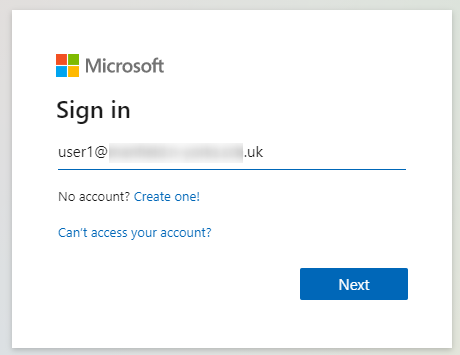
Enter your username

Click Next
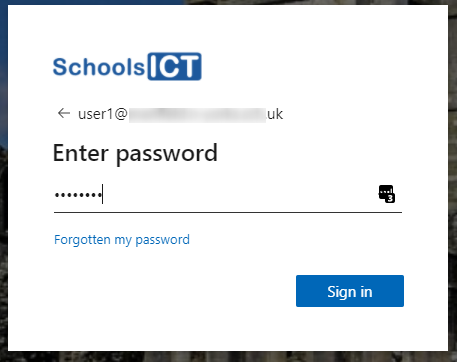
Enter your initial password

Click Sign In
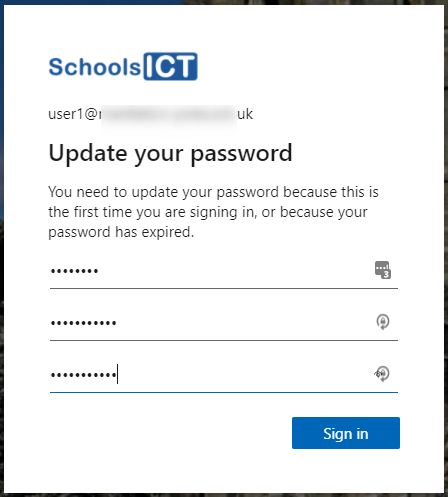
You will be asked to change your password.

Enter your initial password that you just used.

Then enter a new password that you want to change to.

Your new password must be longer than 7 characters in length, and a mixture of numbers and upper and lower case letters to create a strong password. For more information about choosing a good password please see Password policy recommendations for Office 365

Confirm your new password by typing it again

Click Sign in
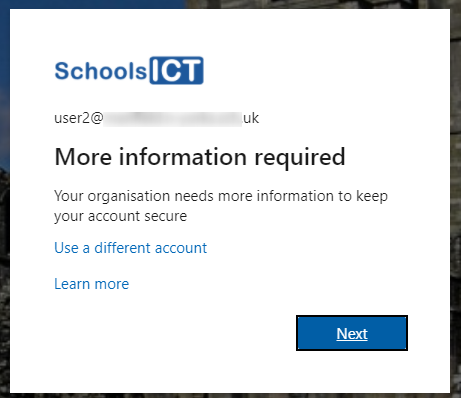
If your organisation has configured self-service password reset for your Office 365 you will now be asked to set this up

Click Next
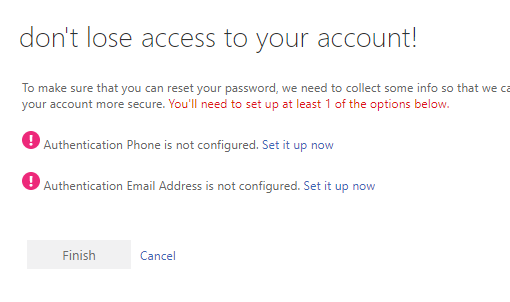
Select which method you want to use if you need to reset your password.

Click Set it up now
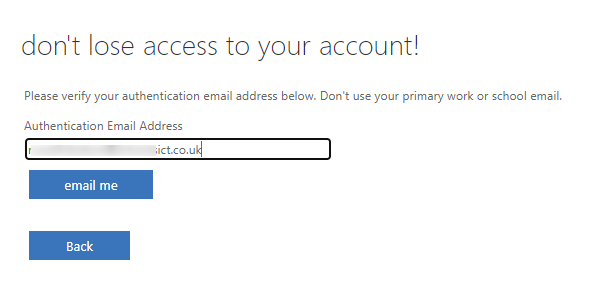
Enter the appropriate information. In this example we are setting up an alternative e-mail address that can be used if we need to reset our password.

Click e-mail me
Enter the code that is sent to the e-mail address you entered

Click Verify
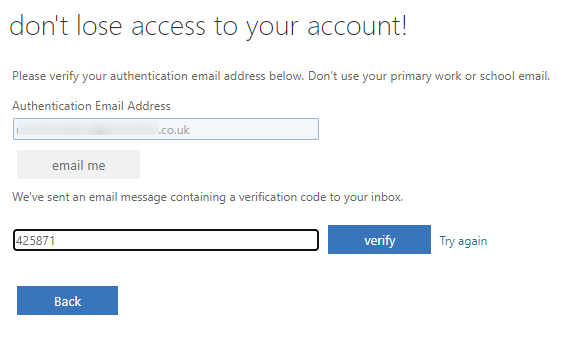
Click Finish
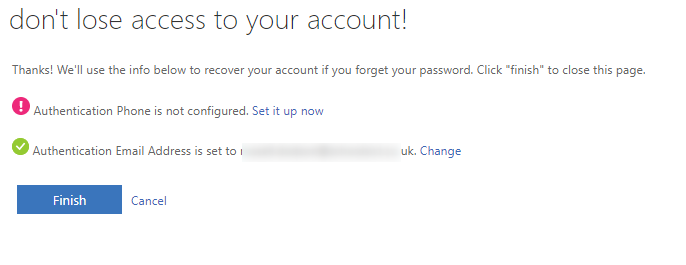
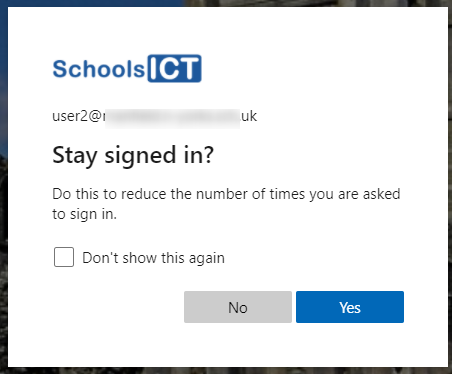
Select if you want to stay signed in or not. You can say Yes if this is a computer you don't share with anyone. Else click No
You might also be interested in